
В данной статье мы рассмотрим подключение к СУБД MySQL при помощи программы HeidiSQL по SSH туннелю.
Убедимся, что pagent запущен и ключ активен. Запускаем HeidiSQL.
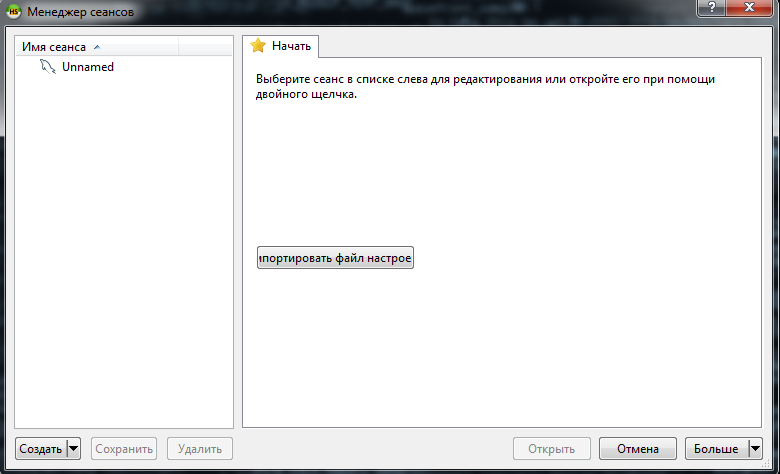
Выбираем сеанс по умолчанию Unnamed или создаим новым и приступим к настройке.
Во вкладке Настройки выбираем Тип сети MariaDB or MySQL (SSH tunnel)
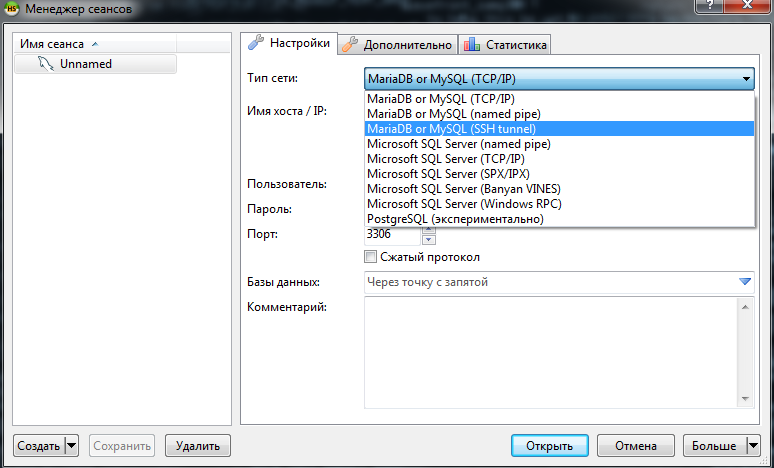
Далее переходим в появившеюся вкладку SSH туннель и заполняем данные от сервера полученные в письме.
Данные для доступа к серверу через Putty / WinSCP
IP: 11.12.23.34
Server Login: testuser
passwd: использовать ключ

======================================
Рут доступ к MySQL (подключаться через SSH тунель)
Hostname = localhost
Username = mysqltest
password: example123
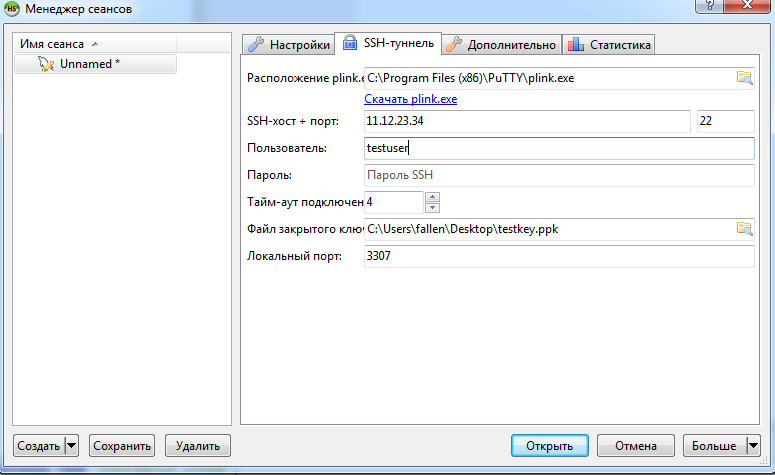
Если поле Расположение plink.exe окажется пустым - укажите путь в ручную, данная программа находится к каталоге установки PuTTy (обычно C:\Program Files (x86)\PuTTy\plink.exe как указано на картинке). Остальные поля заполняйте как в примере. Путь к файлу закрытого ключа указывать не обязательно (может не работать на старых версиях HeidiSQL). Настройка SSH туннеля окончена.
Следюущим шагом переходим на вкладку Настройки и заполняем данные подключения к MySQL серверу.
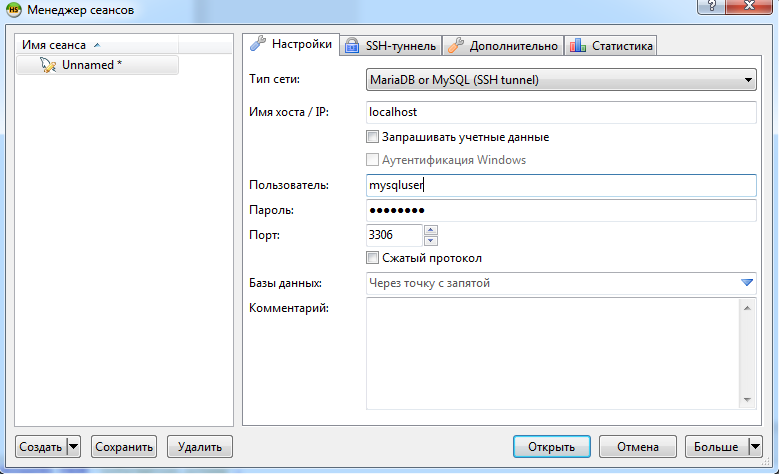
Вводим данные по примеру из картинки, жмем Сохранить и пробуем открыть сеанс (подключиться к серверу).
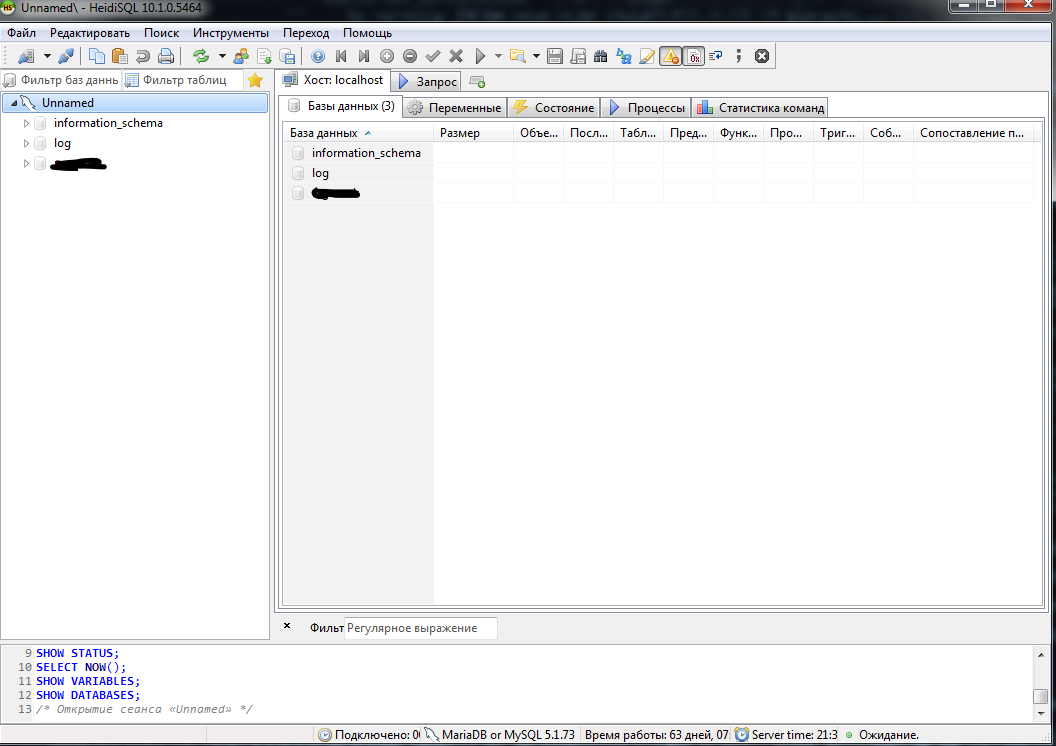
Если все сделано верно, то следующим окном мы увидим список баз данных.
На этом пока все. Для более продвинутого использования HeidiSQL ознакомтесь с инструкциями на официальном сайте