
Личный RSA ключ необходим для получения полного доступа к заказанынм услугам и сервисам Games Service.
RSA ключ намного безопаснее чем стандартный пароль любой сложности, хоть и по началу может вызывать некоторые неудобства которые, через пару дней работы станут незаметными. А вот удобство использования rsa ключей заметит каждый.
Итак приступим. Для генерации пары ключей (приватного и публичного) нам потребуется установить Putty.
После установки ищем утилиту Puttygen.exe (Putty Key Generator) находится в папке установки самой программы или в меню Пуск -> PuTTy -> Puttygen.
Запускаем puttygen и видим такое окно
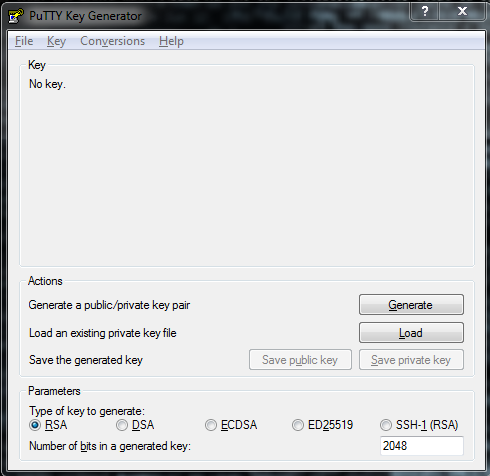
Оставляем настройки по умолчанию: тип ключа RSA, длина в битах 2048.
Нажимаем кнопку Generate, появится строка прогресса и просьба активно в произвольном порядке перемещать курсор мышки в указанном пустом поле, паралельно нажимая кнопки на клавиатуре для генерации ключа.
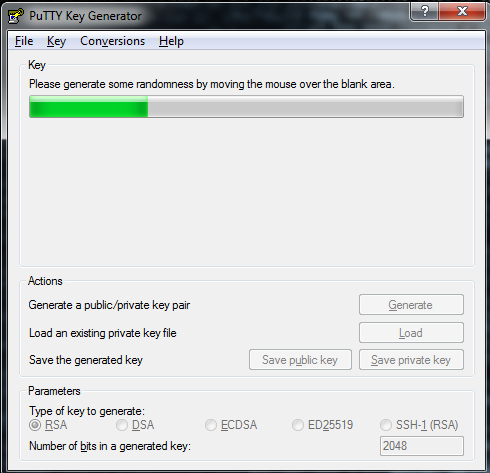
После того как ключ будет сгенерировать, необходимо произвести последние шаги:
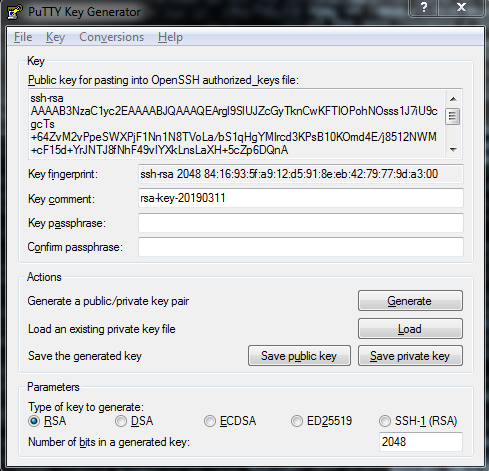
- В поле Key comment: укажите свой ник или название проекта ( пример johnny или la2server)
- В поле Key passphrase необходимо указать желаемый пароль от ключа. Отнеситесь к выбору пароля очень серьезно, так как восстановить его будет нельзя. Так же не рекомендуется его куда либо записывать.
- В поле Confirm passphrase: подтвердите выбранный пароль.
- Нажмите кнопку Save private key в появившемся диалоговом окне укажите путь для сохранения файла ключа (рекомендуется сохранить его на usb флеш накопитель или в любое другое надежное место).
- В верхней части окна в разделе Key public key for pasting into OpenSSH authorized_keys file: скопируйте весь набор символов (правык клик -> выделить все -> копировать)
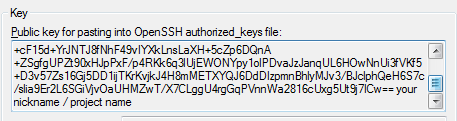
Скопированный публичный ключ сообщите нам через тикет систему или вышлите его на email. Он должен начинаться с ssh-rsa
Обратите внимание, приватный ключ, который вы сохранили у себя передевать нам не нужно, и давать кому либо вообще!
Поздравляем, вы успешно сгенерировали пару ключей для доступа к вашему серверу через SSH.