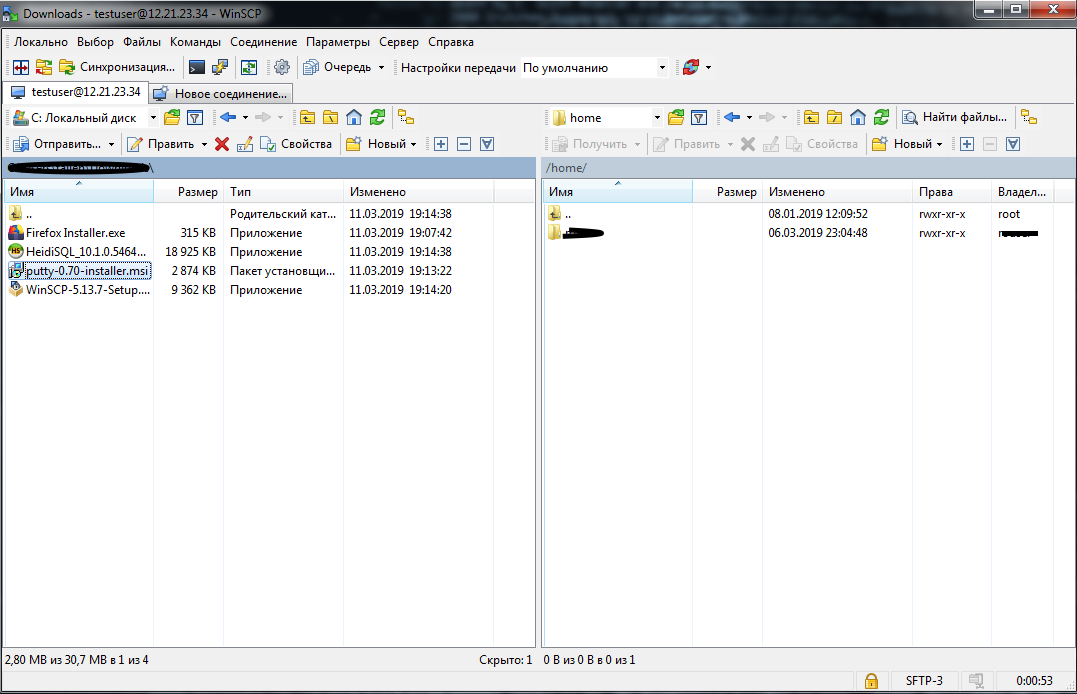
In the last article, we looked at how to create an RSA key to access the server. In this article we will look at how to connect to the server via SSH in PuTTY programs. WinSCP using this key.
Let's get started. First of all, we need to run pagent.exe (it is located in the PuTTY installation folder or the Start menu).
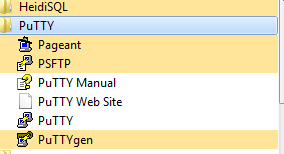
Please note that after starting pagent it minimizes to the system tray. By double-clicking on the program icon, we call the main window to the foreground.
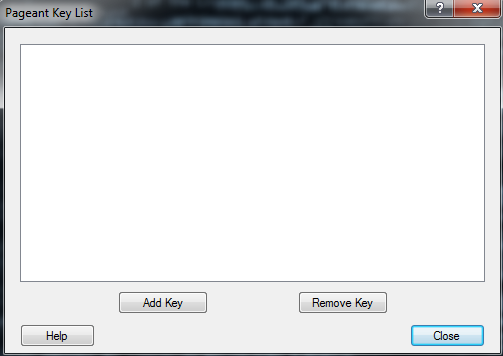
Next, we need to add the private key to the list of authorized ones. Click the Add Key button and in the dialog box specify the path to the private key that was already created earlier.
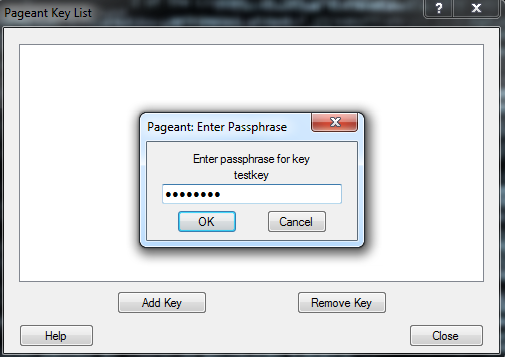
For a key with a password, the program will ask you to enter it in order to activate the key.
If the password is entered correctly, we will see our key in the list of active keys.
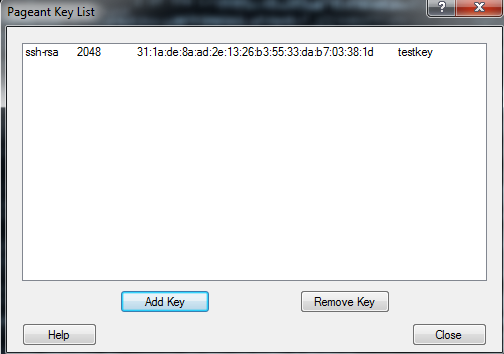
That's all, the key is activated. You can click the Close button (the program will be minimized to tray). The key remains active until the program is running or until the first reboot of the device on which it was opened.
Now we can proceed to connecting to the server.
First, consider the connection options through PuTTy and WinSCP
Find the following block in the data message from your server:
Data for connecting to the server via Putty / WinSCP

IP: 12.21.23.34
Port: 22
Protocol: SSH / sFTP
Server Login: username
passwd: example123
Next, run PuTTY.exe
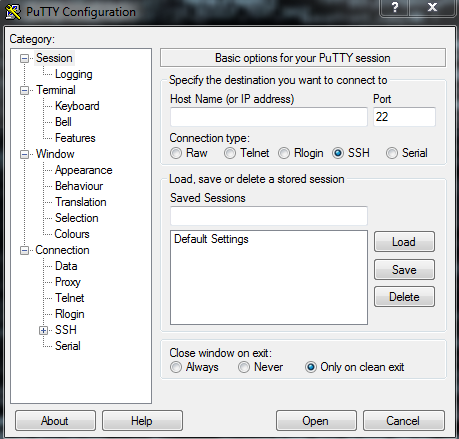
In the left part of the window, select the Data tab
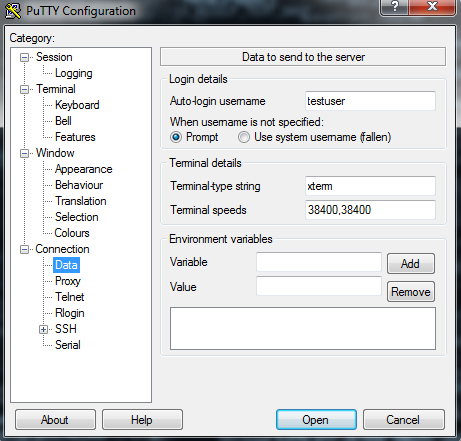
In the Auto-login username field, specify the username.
Next, go back to the main Session tab and fill in the fields
Host Name - indicate the server ip address in it.
Saved Sessions - enter under what name to save our session, for example testserver and click the Save button.
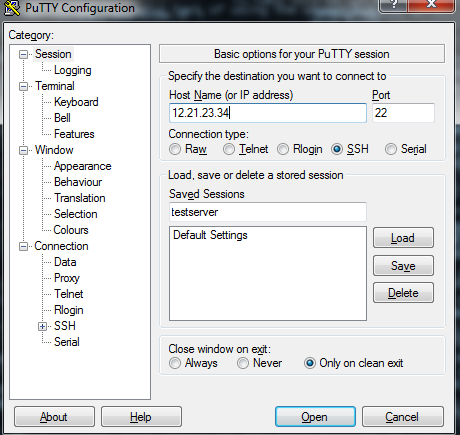
Next, select our saved session from the list and click the Open button
Since we are connecting to the server for the first time, the following window should appear
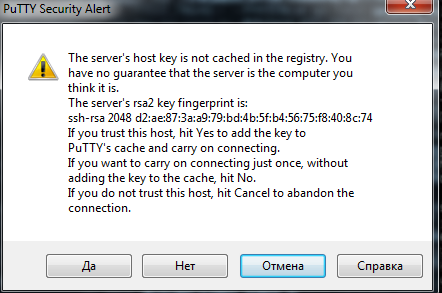
Click Yes. And if all the previous steps were completed correctly, we will get to the server.
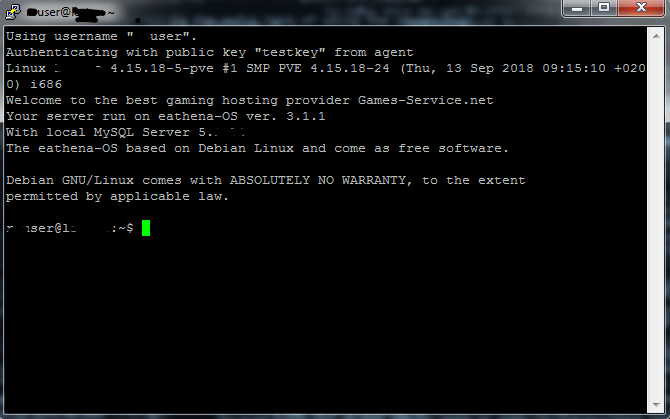
WinSCP connection is very simple. Consider it on the example of the same server. Remember that we need to have pagent running with an active private key.
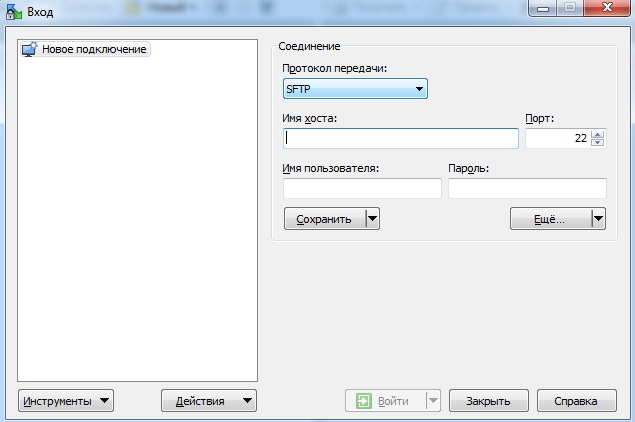
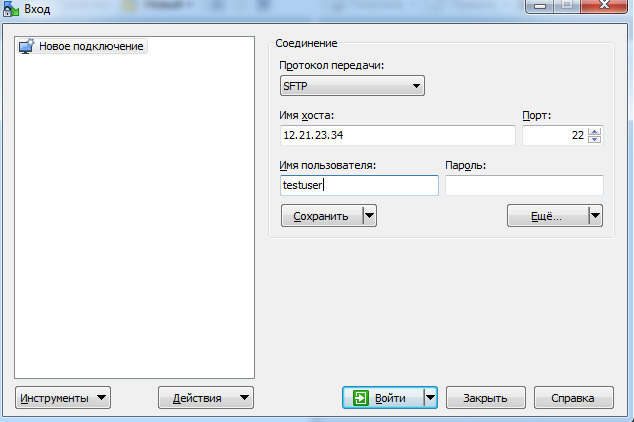
Enter the data from the server in the field
Host Name: ip server address
Username: login from server
We do not enter a password.
Click save
We see the following dialog box, which suggests choosing a name for the saved connection
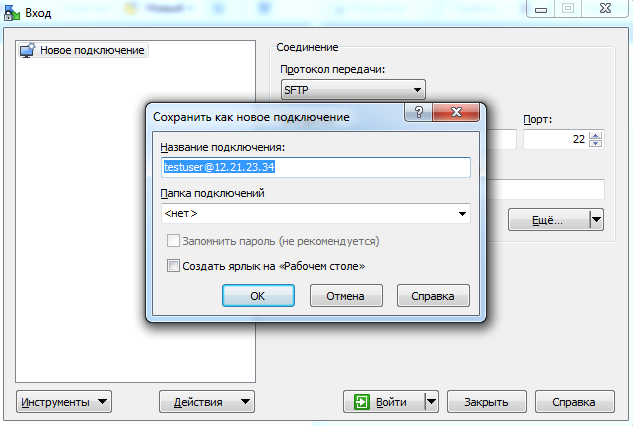
Optionally, you can create a shortcut on your desktop for quick access.
The next step is to accept the server key to connect
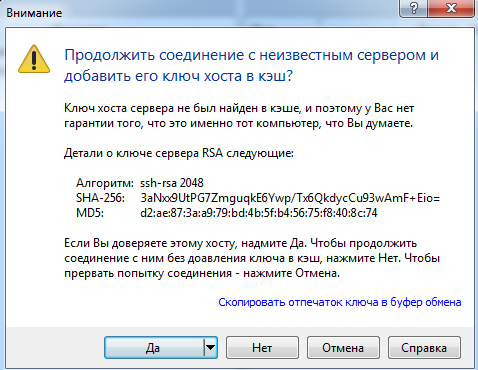
Choose Yes, and if we did everything correctly, then connect to the server.